
|
⇤ ← 2018-01-10 11:33:28에 수정된 1번째 판
크기: 4833
설명:
|
크기: 5524
설명:
|
| 지워진 줄은 이렇게 표시됩니다. | 추가된 줄은 이렇게 표시됩니다. |
| 줄 1: | 줄 1: |
| ##acl +All:read | #acl +All:read |
| 줄 19: | 줄 19: |
| * 설치: [[ftp://oralphys:public@chunglab.ipdisk.co.kr/HDD1/public/LabScribe3_Installer.exe|Windows]] (Vista~Win10) / [[ftp://oralphys:public@chunglab.ipdisk.co.kr/HDD1/public/Lbs3_mac_installer.zip|macOS]] (10.9 이상) | * 다운로드 for [[ftp://oralphys:public@chunglab.ipdisk.co.kr/HDD1/public/LabScribe3_Installer.exe|Windows]] (Vista~Win10) / [[ftp://oralphys:public@chunglab.ipdisk.co.kr/HDD1/public/Lbs3_mac_installer.zip|macOS]] (10.9 이상) |
| 줄 22: | 줄 22: |
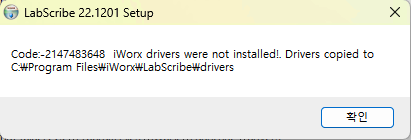
| * (Windows의 경우) iWorx drivers not installed 메세지가 뜨거나 장비 연결시 Hardware not detected 에러가 뜨면, {{attachment:LabScribe_drvError.png|LabScribe Screen|width=300}} 1. !LabScribe을 끄고 iWorx214 장비를 다시 연결한다. 1. New Hardware Detected 메세지와 함께 New Device Hardware 마법사가 실행되면, 1. "드라이버의 위치를 알고 있다"고 하고 다음 위치를 알려준다: C:₩Program Files₩iWorx₩!LabScribe₩drivers 1. 드라이버 설정이 끝나면 !LabScribe을 다시 시작한다. |
|
| 줄 23: | 줄 29: |
| {{attachment:LabScribeInstall_2.png|LabScribe Screen|width=500}} | |
| 줄 25: | 줄 30: |
| {{attachment:LabScribeInstall_2.png|LabScribe Screen|width=480}} 1. 메뉴 ➔ Settings ➔ Animal Nerve ➔ Compound Action Potential 선택 |
|
| 줄 26: | 줄 33: |
| 1. 메뉴 ➔ Settings ➔ Animal Nerve ➔ Compound Action Potential 선택 | |
| 줄 39: | 줄 45: |
| 1. 개구리 [[https://youtu.be/19gZUDlca0c|신경 적출 YouTube]] (참고: [[https://youtu.be/QbxN63V-w7w|근육 적출 YouTube]]) | 1. 개구리 [[https://youtu.be/19gZUDlca0c|신경 적출 YouTube]] (참고: [[https://youtu.be/QbxN63V-w7w|근육 적출 YouTube]] ← 다리는 자르지 말 것!) |
| 줄 50: | 줄 56: |
| 1. Threshold 관찰 * Amplitude vs. Time: 어떻게 다른가? 1. Bidirectionality: 방향에 따라 신호 전달이 다른가? |
1. Threshold 관찰: 자극의 Amplitude와 duration 중 어떤 것이 더 중요한가? 1. Bidirectionality: 신호의 전달 방향이 양방향 vs. 단방향? |
| 줄 54: | 줄 59: |
| 1. 여러 신경의 전달속도 차이 | 1. 여러 신경세포의 전달속도 차이 (nerve와 neuron 구별할 것) |
Compound Action Potential 실습
준비
Recording 준비
iWorx-214 Amplifier & DAC + 신경 chamber + 기록용 PC or Mac 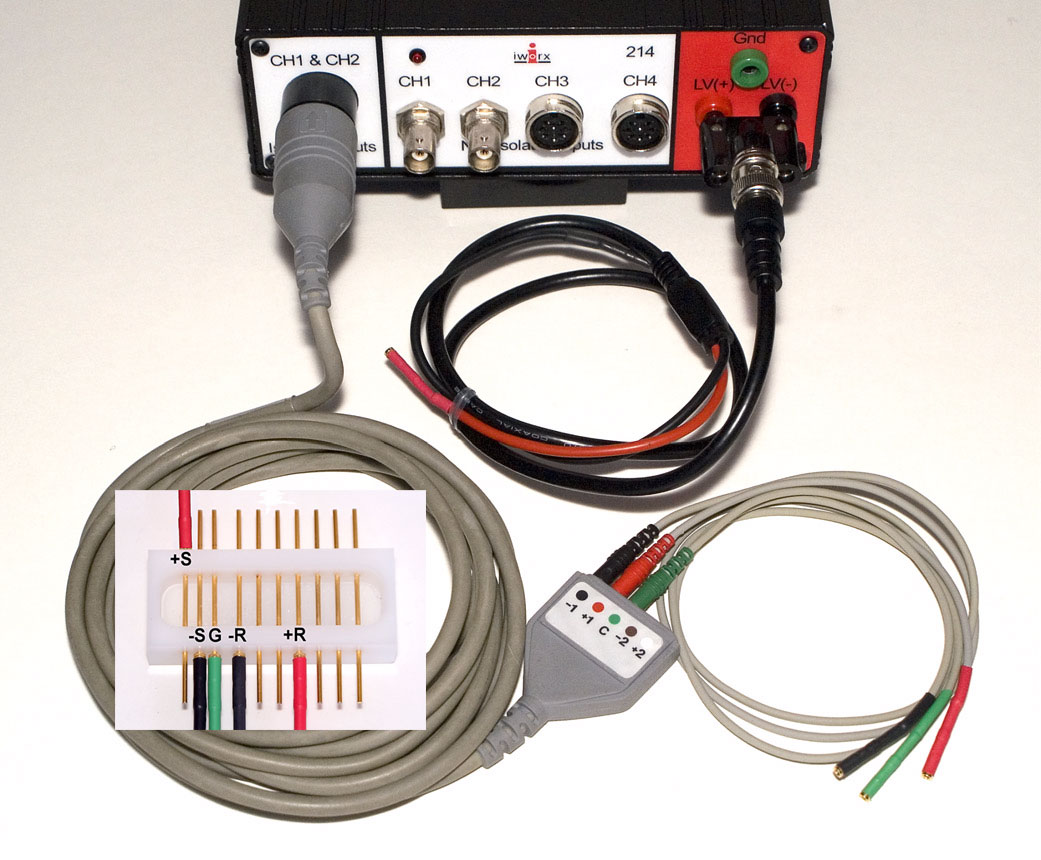
- 채널1 (+)전극 ⟷ 채널1 (-)전극
- Stimulation (+)전극 ⟷ Stimulation (-)전극
- 접지 (C)전극
소프트웨어(LabScribe)
다운로드 for Windows (Vista~Win10) / macOS (10.9 이상)
- 처음 실행시 ➔ Teaching Mode ➔ English ➔ iwx214 선택
- (Windows의 경우) iWorx drivers not installed 메세지가 뜨거나 장비 연결시 Hardware not detected 에러가 뜨면,
LabScribe을 끄고 iWorx214 장비를 다시 연결한다.
- New Hardware Detected 메세지와 함께 New Device Hardware 마법사가 실행되면,
"드라이버의 위치를 알고 있다"고 하고 다음 위치를 알려준다: C:₩Program Files₩iWorx₩LabScribe₩drivers
드라이버 설정이 끝나면 LabScribe을 다시 시작한다.
- Compound Action Potential용 setting 설정 불러오기
- 메뉴 ➔ Settings ➔ Load Group ➔ Complete Settings ➔ IPLMv6Complete.iwxgrp 선택
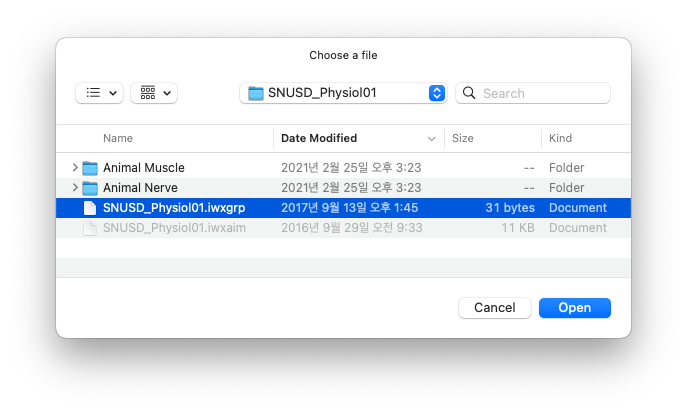
- 메뉴 ➔ Settings ➔ Animal Nerve ➔ Compound Action Potential 선택
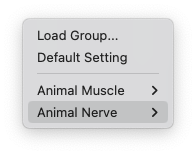
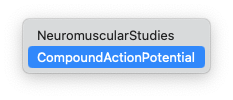
만약 1번 과정을 거쳐도 Settings에 Animal Nerve가 보이지 않는다면 LabScribe을 재실행 할 것
- 메뉴 ➔ Settings ➔ Load Group ➔ Complete Settings ➔ IPLMv6Complete.iwxgrp 선택
- Setting을 불러오면 관련 매뉴얼.pdf가 같이 열림
LabScribe의 메뉴에서 Experiment를 선택하면 추가 매뉴얼.pdf 선택 가능
기타 일반적인 사용법: https://www.iworx.com/teaching-landing/teaching-videos/
신경 샘플 준비
Pithing: 송곳 같은 기구로 CNS를 파괴하는 행위
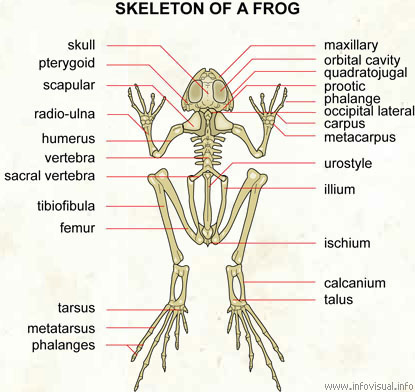
개구리 신경 적출 YouTube (참고: 근육 적출 YouTube ← 다리는 자르지 말 것!)
- 다리 skin 벗기기
Urostyle bone(골반뼈 일부) 제거 후 sciatic nerve를 찾아서 실로 묶기 (손잡이 역할)
다리 근육을 손으로 찢으면서 sciatic nerve의 distal end 찾아서 실로 묶기
- 닭고기 찢는 듯한 느낌으로 찢으면 잘 분리됨
- sciatic nerve는 길수록 좋음. 최대한 길게 뽑을 것.
- Sciatic nerve 양 끝단에 실 묶은 곳 바깥쪽을 가위로 자르고 실을 이용해서 신경을 적출함.
- Recording chamber에 위치시키고 개구리 링거액을 수시로 뿌려서 마르지 않게 유지
실험
Research Questions
- Threshold 관찰: 자극의 Amplitude와 duration 중 어떤 것이 더 중요한가?
- Bidirectionality: 신호의 전달 방향이 양방향 vs. 단방향?
- Refractory Period
- 여러 신경세포의 전달속도 차이 (nerve와 neuron 구별할 것)
- Blocker에 의한 효과 관찰
Trouble Shooting
- 확인사항
- Nerve chamber에 nerve가 있고, Stimulation 전극(+/-)과 Recording 전극(+/-)이 신경에 닿았는지?
- Stimulation용 + 전극과 - 전극은 iWorx-214 Amplifier의 Stimulation 단자에 연결되었는지?
- Recording용 + 전극과 - 전극은 iWorx-214 Amplifier의 Channel 1 단자에 연결되었는지?
- 링거액이 전극에 닿지 않았는지? (Stimulation 전기 신호가 신경이 아닌 전해질 용액을 통해 Recording 전극으로 전달될 수 있음)
- Ground 전극은 Stimulation 전극과 Recording 전극 사이에 위치했는지?
- 기본조작
- 화면 조절
 숫자로보기 | 위치 Mark하기 | Stimulation 메뉴보기
  x축(Time) scale x 1/2 | 커서 사이 확대 | x축(Time) scale x2 | y축 scale 자동 조절
 - Stimulation 메뉴 조작

- Pulse, Amplitude, Number of Pulses, Width(duration), T off(다음 pulse까지 대기 시간)
Parameter 조작 후 Apply 버튼을 꼭 눌러줘야 함
Data Export: MatLab, Excel 지원함
- 화면 조절
| /AP /APLab /Blood /Circulation /CirculationLab /CompoundAP /GSRLab /Heart /MembraneTransport /MuscleLab /Pain /PainMxFacial /Respiration /Stress |